10.0.0.1 Admin Login: Settings, Passwords & Pause Time
Log in to 10.0.0.1 in minutes. Change your WiFi name and password, turn on Piso WiFi pause time, and fix common login errors — easy step-by-step guide.
Open the portal
Open 10.0.0.1
10.0.0.1 is a private Class A IP address used by routers as the default gateway. Type http://10.0.0.1 into your browser address bar and you reach the admin control panel, where you manage every network setting: WiFi name, password, connected devices, security, and more.
For Piso WiFi operators in the Philippines, this address is your entire business dashboard. From here you set coin-based pricing, control session durations, adjust bandwidth per user, enable Piso WiFi pause time, and monitor the network in real time. This guide covers the full login process, default credentials by brand, what each setting does, and how to fix every common access problem.
What Is 10.0.0.1?
10.0.0.1 is a private IPv4 address in the Class A range (10.0.0.0 to 10.255.255.255). It works only on local networks and cannot be accessed from the internet. Routers use it as their default gateway — the entry point for all admin settings on your local network.
A few things worth knowing before you log in:
- Always use
http://nothttps://. The admin panel does not use SSL. - Type it in the address bar, not the search bar. Searching
10.0.0.1in Google just runs a search. 10.0.0.0.1is a typo. The correct address has two zeros, not three. An extra zero makes it an invalid IP and your browser will not load anything.
10.0.0.1 vs Other Common Router IPs
| IP Address | Common Brands |
|---|---|
10.0.0.1 | Xfinity/Comcast, LPB Piso WiFi, Cisco, Arris, Tenda (some models), Aztech |
192.168.1.1 | TP-Link, Netgear, D-Link, Linksys |
192.168.0.1 | Huawei, ZTE, some Netgear models |
192.168.254.254 | Converge, some local Philippine ISP routers |
If 10.0.0.1 does not load for you, check the sticker on the back of your router. The correct gateway IP is always printed there. If yours turns out to be a less common address, our 10.5.50.1 login guide and 20.0.0.1 admin guide walk through those gateways the same way.
Default Login Credentials for 10.0.0.1
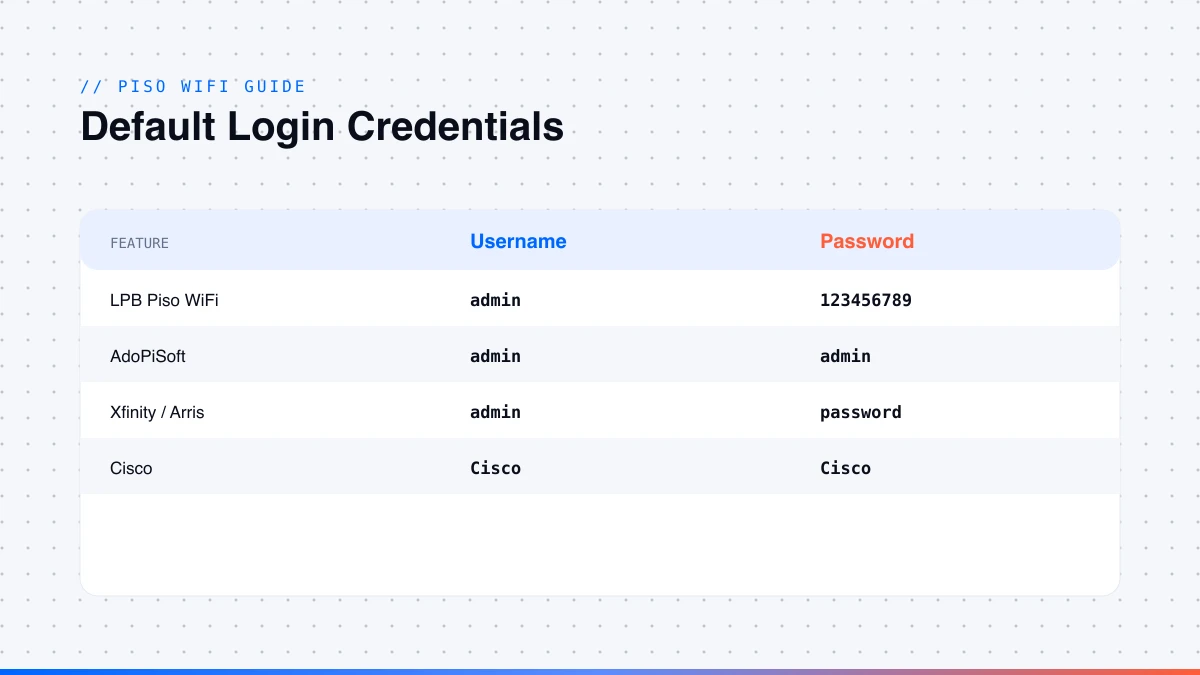
Most routers ship with a factory-set username and password. These are publicly listed, so change them right after your first login.
| Brand | Username | Password |
|---|---|---|
| Xfinity/Comcast (XB6, XB7, XB8) | admin | password |
| LPB Piso WiFi | admin | 123456789 |
| Cisco | Cisco | Cisco |
| Arris | admin | password |
| Tenda | admin | admin |
| Ado Piso WiFi | admin | admin |
| Generic/other | admin | admin |
Starting in early 2026, you must turn on Admin Tool Access through the Xfinity app first, or the 10.0.0.1 page will show blank or redirect. Open the Xfinity app, then Connect → See Network → Advanced Settings → Admin Tool Access, and switch it on.
If the default login details are not working and you have not set new ones, look at the physical sticker on your router. Some units use unique passwords rather than the standard defaults.
How to Log In to the 10.0.0.1 Admin Panel
You must be connected to the same network as the router. Mobile data will not work.
On a PC or Laptop (Windows)
- Plug an Ethernet cable into your laptop and the router, or connect via WiFi.
- Open Command Prompt and type
ipconfig. Confirm the Default Gateway shows10.0.0.1. - Open any browser — Chrome, Firefox, or Edge all work.
- Click the address bar at the top of the browser (not the search bar).
- Type
http://10.0.0.1and press Enter. - The login page loads — enter your username and password.
- Click Login to enter the admin dashboard.
On a Mac
- Connect to the router via WiFi or Ethernet.
- Go to System Settings → Network → select your connection → Details → TCP/IP tab.
- Confirm the Router field shows
10.0.0.1. - Open Safari or Chrome, type
http://10.0.0.1in the address bar, and press Enter. - Enter your credentials on the login page.
On Mobile (Android or iOS)
This is where most people get stuck. Both Chrome and Safari use a combined address and search bar on mobile. If you just type 10.0.0.1, the browser treats it as a search term.
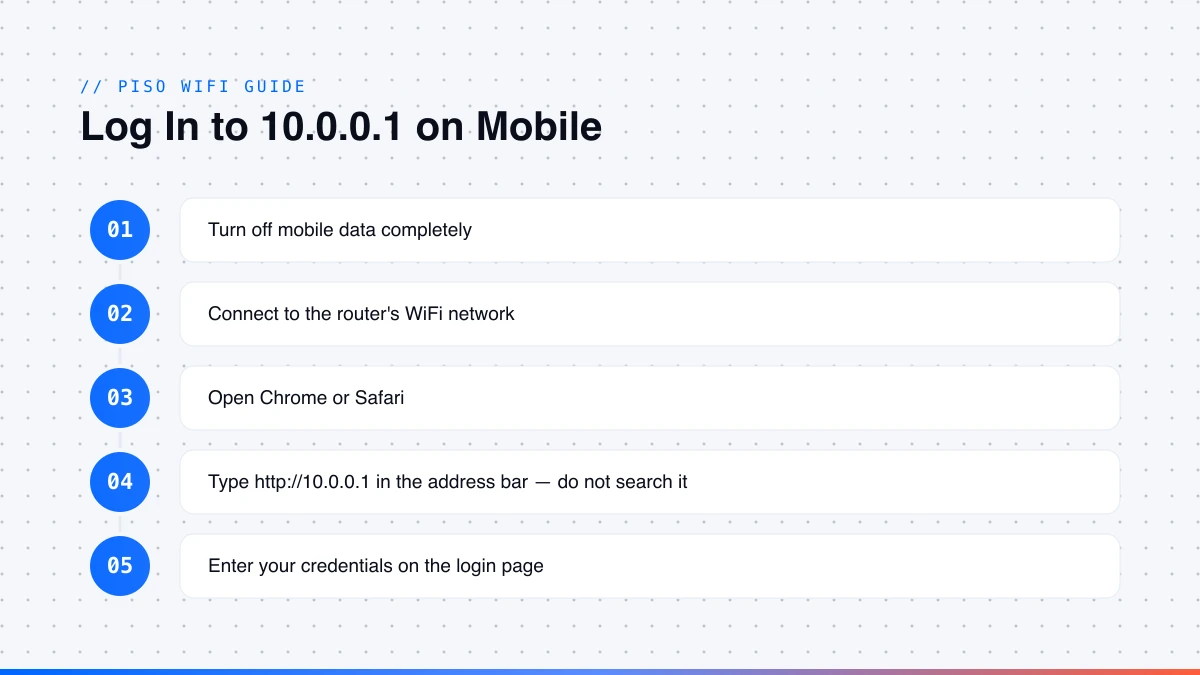
- Turn off mobile data completely. With mobile data on, your phone may route traffic away from the local network.
- Connect to the router's WiFi network.
- Open Chrome or Safari.
- Tap the address bar and type
http://10.0.0.1, including thehttp://part. - Press Go or Enter.
- The admin login page opens. Enter your credentials there.
If the page does not load on Android, go to your WiFi settings, select your network, and check the advanced options to make sure the gateway is set to 10.0.0.1.
What You Can Control Inside the Admin Panel
When you log in, the dashboard lets you control your network fully. The layout varies by brand and firmware, but most routers offer similar settings.
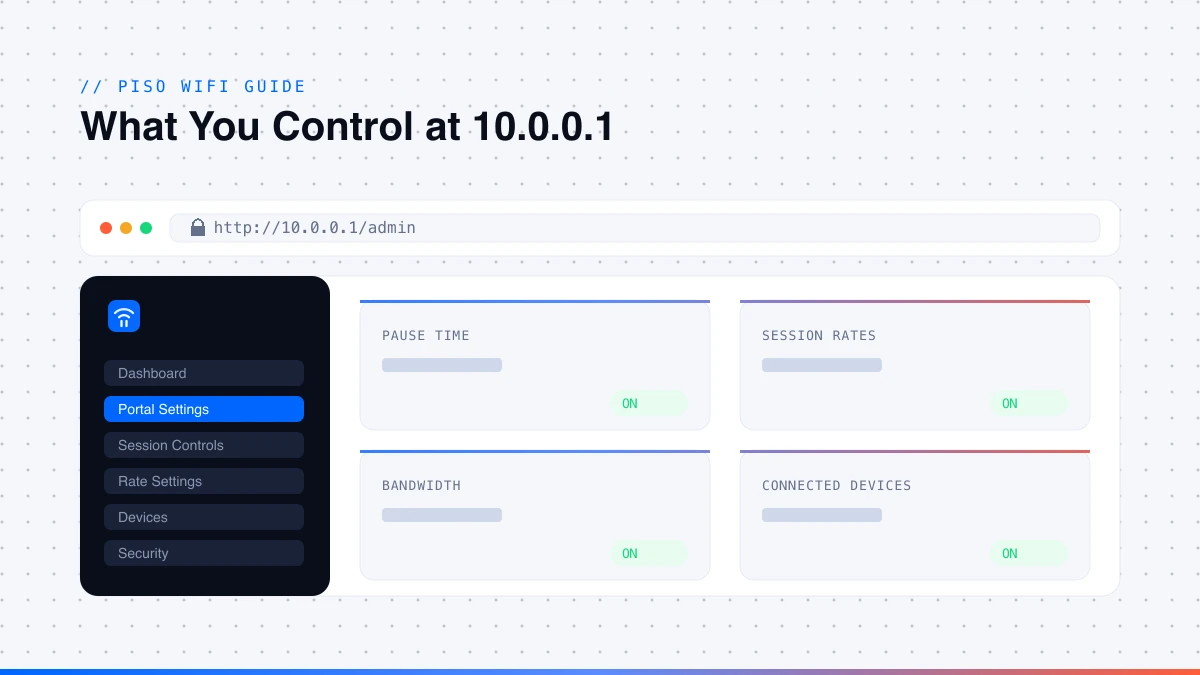
- Change the WiFi name (SSID) and password
- Set up a guest network with separate credentials
- View and block connected devices
- Enable or disable WPS
- Configure firewall rules and port forwarding
- Update router firmware
- Configure DNS settings
- Reboot or factory reset the router
- Set QoS to prioritise specific apps or devices
Settings to Change After Your First Login
These four changes cover most security risks on a default router setup:
- Change the admin password. This is separate from your WiFi password. Update it in System or Administration settings immediately.
- Change your WiFi name. The default SSID often includes your router brand, which tells anyone nearby what hardware you use.
- Enable WPA3 or WPA2. WPA3 is the current standard. If your device does not support it, WPA2-AES is the next best option.
- Disable WPS. WPS has a known vulnerability, and most users never use it.
10.0.0.1 Admin Login for LPB Piso WiFi
LPB Piso WiFi is the most widely deployed coin-operated internet system in the Philippines. It runs on a router with the 10.0.0.1 admin login gateway and a separate user-facing portal at the same address.
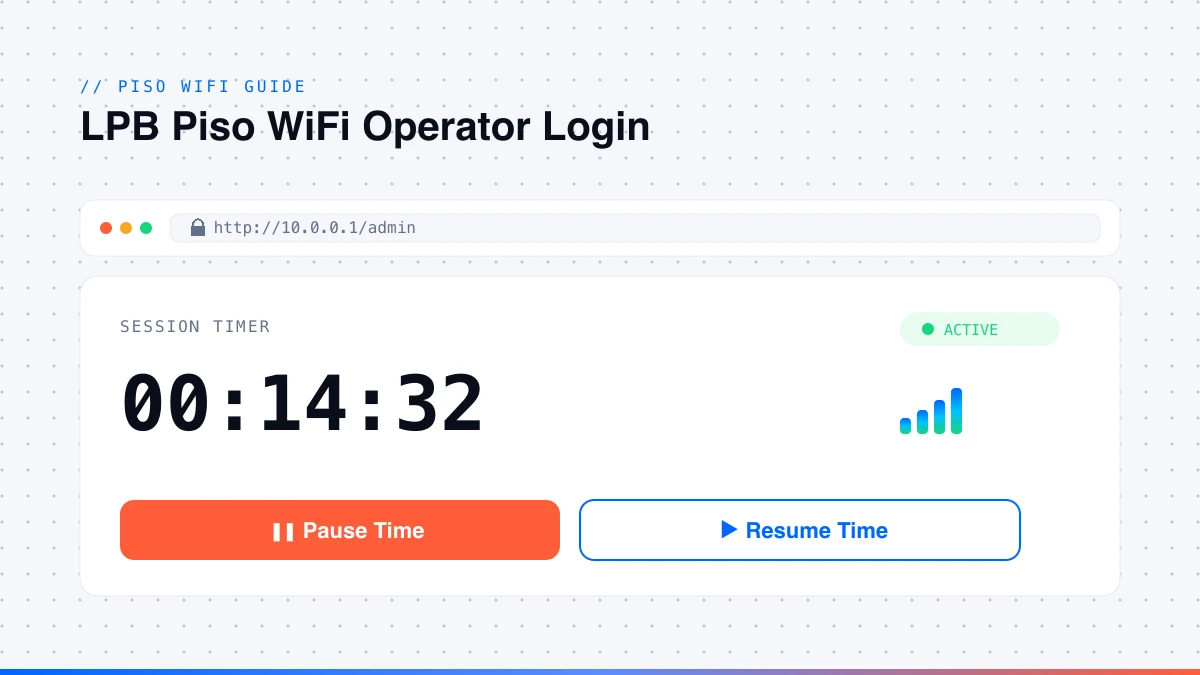
Logging In as Operator
- Connect your phone or laptop to the Piso WiFi network you manage.
- Open a browser and go to
http://10.0.0.1/admin. - Enter username
admin, password123456789(or check the device label). - You are now in the operator dashboard.
The default admin / 123456789 combination is documented everywhere online and is a known target for unauthorised access. Anyone on your network who knows it can change your rates, delete sessions, or lock you out.
What Operators Can Configure
| Setting | Where to Find It |
|---|---|
| Session pricing | Rate Settings or Vendo Settings |
| Time per coin denomination | Rate Settings |
| Bandwidth limit per user | Network Settings or QoS |
| Payment method (coins, vouchers, GCash, Maya) | Payment Settings |
| Connected device list | Users or Devices tab |
| Admin password | System or Security Settings |
| Auto-reboot schedule | System → Reboot Schedule |
Common pricing setups used by operators across the Philippines in 2026: ₱1 for 10–15 minutes, ₱5 for 30 minutes, ₱10 for 1 hour, ₱20 for 3 hours. For the bigger picture — permits, hardware, and coin calibration — see our guide on how to request a Piso WiFi vendo machine.
Piso WiFi Pause Time: How It Works
Piso WiFi pause time lets users freeze their session timer without losing paid minutes. It is one of the most searched features tied to the 10.0.0.1 admin login — without it, every bathroom break or phone call burns paid time.
How Users Pause and Resume
- Connect to the Piso WiFi network.
- Open a browser and go to
http://10.0.0.1. - The user portal loads. Find the Pause Time button.
- Tap it — the countdown freezes instantly and internet access stops.
- When you come back, go to
http://10.0.0.1again. - Tap Resume Time. The timer picks up exactly where it stopped.
The session is matched by device identification. If you switch devices or change your MAC address between pausing and resuming, the system may not recognise you. On Android 10 and later, randomised MAC is enabled by default — if pause and resume are not working, turn MAC randomisation off for that specific network. Pause time only works if the owner has enabled it; if the button is missing, see why the pause button is not showing.
How Operators Enable Pause Time
These steps work across LPB Piso WiFi, PisoFi, and Ado Piso WiFi with minor differences in menu labels:
- Log in to
http://10.0.0.1/adminusing your operator credentials. - Go to Settings or System Settings.
- Find the Enable Pause Time or Pause/Resume option and toggle it on.
- Set your limits if needed — maximum pauses per session, and an auto-resume timer.
- Save and reboot if prompted.
For a full walkthrough across every firmware version, read the complete Piso WiFi pause time guide.
How to Change Your WiFi Password via 10.0.0.1
This is the most common task people log in to do.
- Log in to
http://10.0.0.1with your admin credentials. - Go to Wireless or WiFi Settings.
- Find the Wireless Security or Password section.
- Update the password — use a mix of letters, numbers, and at least one symbol.
- Save. Devices on the network will disconnect and need to reconnect with the new password.
Tenda router note: Tenda routers default to
192.168.0.1on most models, not10.0.0.1. Confirm the gateway first by checking your network details; the steps inside the panel are the same once you are in.
How to Block or Manage Connected Devices
Every connected device appears in the admin panel — useful for identifying unknown devices and removing freeloaders on a Piso WiFi network.
- On most routers: Wireless → Connected Devices or DHCP → Client List
- On LPB Piso WiFi: the Users or Devices tab in the operator dashboard
To block a device, copy its MAC address, go to MAC Filtering or Access Control, add it to the blocklist, and save. Whitelist mode only allows approved devices (good for home networks); blacklist mode blocks specific devices (more practical for Piso WiFi). Blocking a device does not refund the user's remaining paid session time.
How to Update Router Firmware via 10.0.0.1
Firmware updates patch security vulnerabilities and sometimes add features. For an automatic update, log in, go to Advanced or System Tools → Firmware Upgrade, and click Check for Updates. For a manual update, download the file for your exact model from the manufacturer's support page, upload it under Firmware Upgrade, and confirm — do not disconnect power during the process.
LPB Piso WiFi firmware updates released in 2026 added e-wallet payment support through GCash and Maya and improved MAC filtering controls. If your machine does not show digital payment options, a firmware update may add them.
Can't Access 10.0.0.1? Fix It Here
Work through this list in order — most problems are solved before the last item.
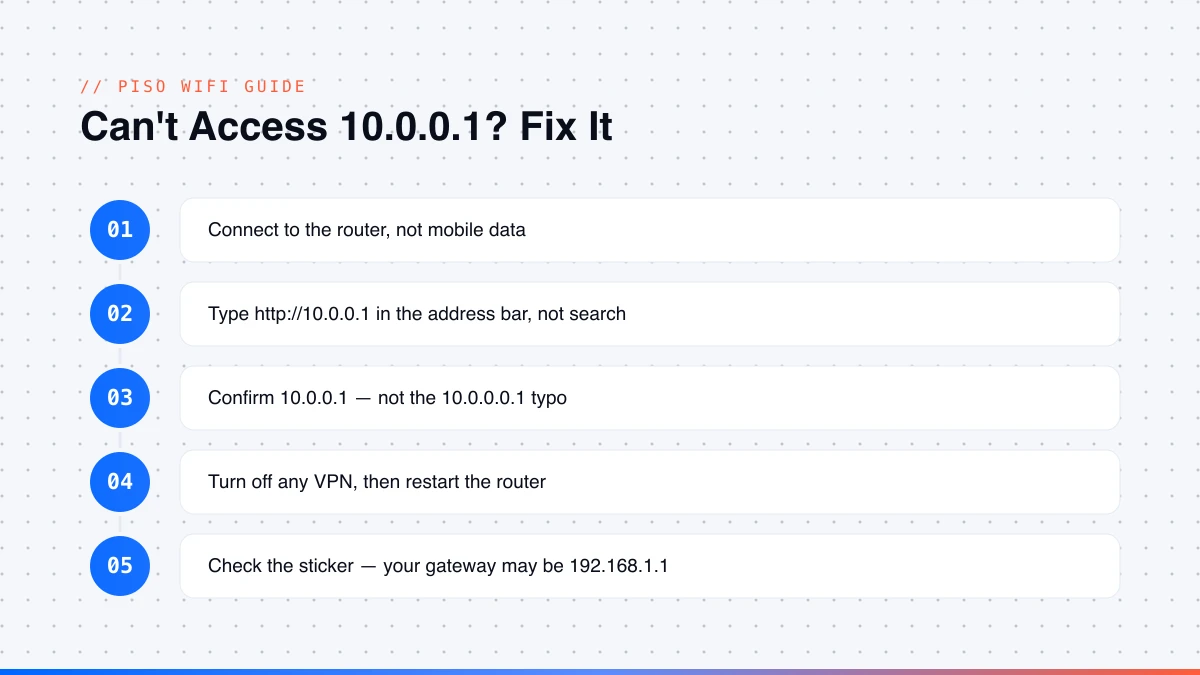
The login page does not load at all
- Make sure your device is connected to the router, not mobile data, and disable mobile data before trying again
- Check that you typed
http://10.0.0.1in the address bar, not the search bar - Confirm you typed
10.0.0.1, not10.0.0.0.1— one extra zero breaks it - Turn off any VPN; it routes your traffic away from the local network
- Restart the router, wait two minutes, then try again
- Check the router sticker — your gateway may be
192.168.1.1or192.168.0.1
The page loads but login fails
- Try the default credentials for your brand from the table above
- For Xfinity: confirm Admin Tool Access is enabled in the app
- For LPB Piso WiFi: try
admin/adminifadmin/123456789does not work, or check the device sticker - If you cannot remember a custom password, a factory reset is the only option
The page loads slowly or hangs: open an incognito window, switch browsers, try a different device, or restart the router.
For a deeper symptom-by-symptom table, see the homepage troubleshooting section.
How to Reset Your Router
Try a soft reboot first — log in, go to System Tools or Advanced → System, click Reboot, and wait two minutes. For a factory reset via the panel, go to System Tools → Restore Factory Defaults, confirm, and log back in with the default credentials from the sticker.
If you are fully locked out, do a hardware reset: find the recessed Reset button on the back or bottom, hold it with a pin for 10–15 seconds until the LEDs blink, release, and wait for the router to restart.
Frequently Asked Questions
What is 10.0.0.1 used for?
It is the default gateway IP address used by routers. Typing http://10.0.0.1 in your browser's address bar opens the router's admin control panel, where you manage all network settings.
What is the username and password for 10.0.0.1?
The most common defaults are admin / password for Xfinity and Arris, Cisco / Cisco for Cisco routers, and admin / 123456789 for LPB Piso WiFi. Always check the sticker on your device for the exact default.
What is 10.0.0.0.1?
It is a common typo. 10.0.0.1 is the correct address. 10.0.0.0.1 has an extra zero and is not a valid IP address.
What is the admin password for 10.0.0.1 on Piso WiFi?
The default for LPB Piso WiFi is admin / 123456789. For Ado Piso WiFi it is admin / admin. Change the default password immediately after setting up.
Can I change the IP address 10.0.0.1?
Yes. In the admin panel, go to Network → LAN and update the IP field. Write down the new address before saving — after the router restarts, that new address is what you use to log in.
About the author
Piso WiFi Guide Team
The Piso WiFi Guide Team documents how the 10.0.0.1 portal and admin panel behave across LPB, AdoPiSoft, JuanFi and other firmware, for both users and operators.
Related guides
How to Request a Piso WiFi Vendo Machine Permit (2026)
Register and request a Piso WiFi vendo machine in 2026: NTC VAS permit steps, business permits, machine options, and coin slot calibration.
Read guide →
20.0.0.1 Admin Login: Easy Access & Setup Guide
Open 20.0.0.1 the right way. Log in, change your WiFi name and password, set up a captive portal, and fix login errors — simple steps for 2026.
Read guide →
10.5.50.1 Login: Pause Time, WiFi Control & Admin
Log in to 10.5.50.1 the easy way. Pause and resume your session, change your WiFi name and password, and fix login errors fast — simple 2026 guide.
Read guide →