10.5.50.1 Login: Pause Time, WiFi Control & Admin
Log in to 10.5.50.1 the easy way. Pause and resume your session, change your WiFi name and password, and fix login errors fast — simple 2026 guide.
Open the portal
Open 10.5.50.1
10.5.50.1 is a private gateway for some routers and Piso WiFi systems. It opens an admin panel where you can manage devices, rename your WiFi, change your password, monitor connection status, and control sessions — including how long a session can stay paused. It works from any phone or laptop, as long as you are on that network.
This guide covers everything for 2026: login steps, pause time setup on Android, status checks, security settings, and every common fix you will need.
What Is 10.5.50.1, and Who Uses It
Not every router uses this address. Most home routers default to 192.168.1.1 or 192.168.0.1. 10.5.50.1 is specific to a smaller set of routers and networks. It is a private Class A IP address, which means it works only inside a local network and cannot be reached from the internet.
Who typically uses 10.5.50.1:
- Piso WiFi operators (coin-operated internet vending machines in the Philippines)
- Small business networks with custom gateway configurations
- Some ISP-branded routers with non-standard default IPs
- Public WiFi setups in stores, waiting areas, and transport hubs
How to Log In to 10.5.50.1 Step by Step
Most failed logins come down to one of two things: mobile data is enabled, or the IP was typed into the search bar. Fix that first, then follow these steps.
Before you start: connect to the router's WiFi (or plug in a LAN cable), disable mobile data, and open Chrome, Safari, Firefox, or Edge.
- Launch your browser on your phone, tablet, or computer.
- Tap the address bar.
- Enter
http://10.5.50.1and tap Enter/Go. - The login page loads, asking for a username and password.
- Enter your admin credentials.
- Click Login or Sign In.
Default Login Credentials by Router Brand
| Router Brand | Default Username | Default Password |
|---|---|---|
| TP-Link | admin | admin |
| Huawei | admin | admin |
| D-Link | admin | admin |
| Cisco | admin | admin |
| Netgear | admin | password |
| Piso WiFi (LPB) | admin | 123456789 |
These are factory defaults. If someone changed them and you do not know the current credentials, you will need to reset the router (covered below).
User Portal vs Admin Panel
10.5.50.1 serves two different pages depending on what you need.
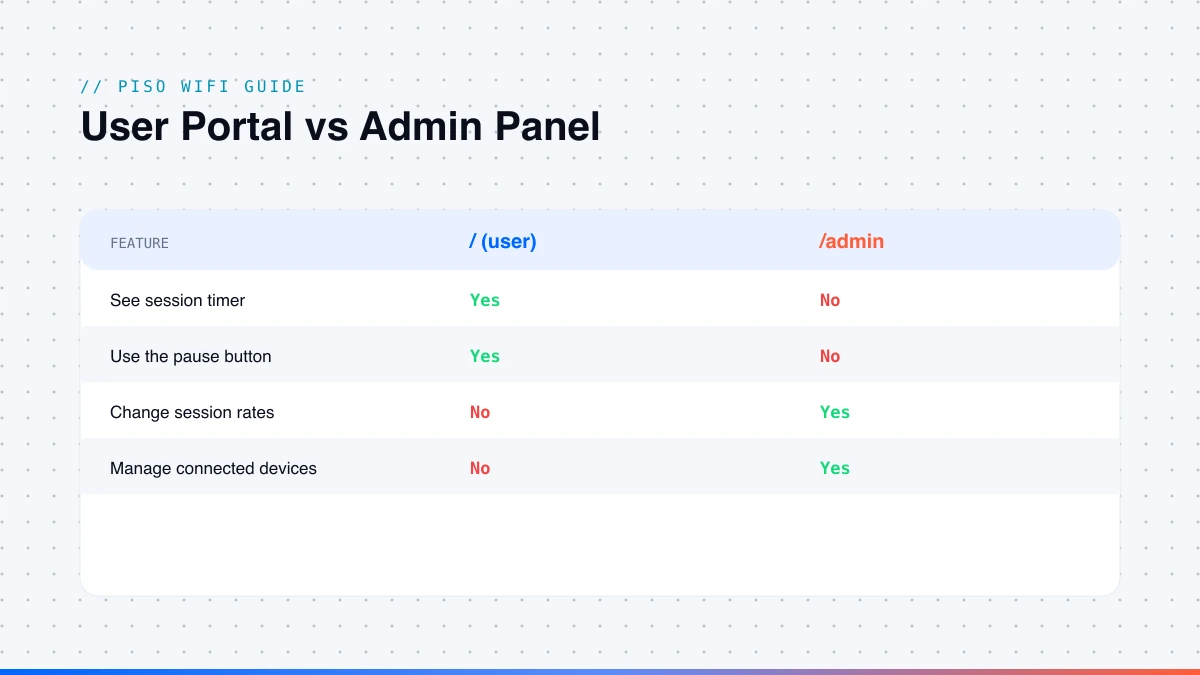
http://10.5.50.1opens the user portal — where customers see their session timer, use the pause button, and resume their connection.http://10.5.50.1/adminopens the admin panel — for the network owner to manage settings, devices, session rates, and security.
If you just want to pause your session, you only need the first one. If you run the network, you need /admin. The same split applies to the LPB 10.0.0.1 gateway — see our 10.0.0.1 admin login guide.
10.5.50.1 Pause Time: What It Is and How to Use It
Pause time is the most-searched feature on this IP. When you tap Pause Time, your session timer stops and your paid minutes freeze. Walk away, come back later, tap Resume, and the timer picks up exactly where it stopped. You only burn paid time when you are actually online — which is why Piso WiFi setups are built around it.
How to Pause Your WiFi Session as a User
- Make sure you are connected to the
10.5.50.1network. - Open your browser and type
http://10.5.50.1. - The user portal loads and shows your session details, including remaining time.
- Tap the Pause Time button.
- Your timer stops immediately — confirm the countdown has frozen.
- To come back, return to
http://10.5.50.1and tap Resume Time. - Your session continues from where it paused.
No reconnection is needed — your device stays on the network the whole time.
How to Use 10.5.50.1 Pause Time on Android
Android users often run into trouble here because mobile data interferes with the local network IP.
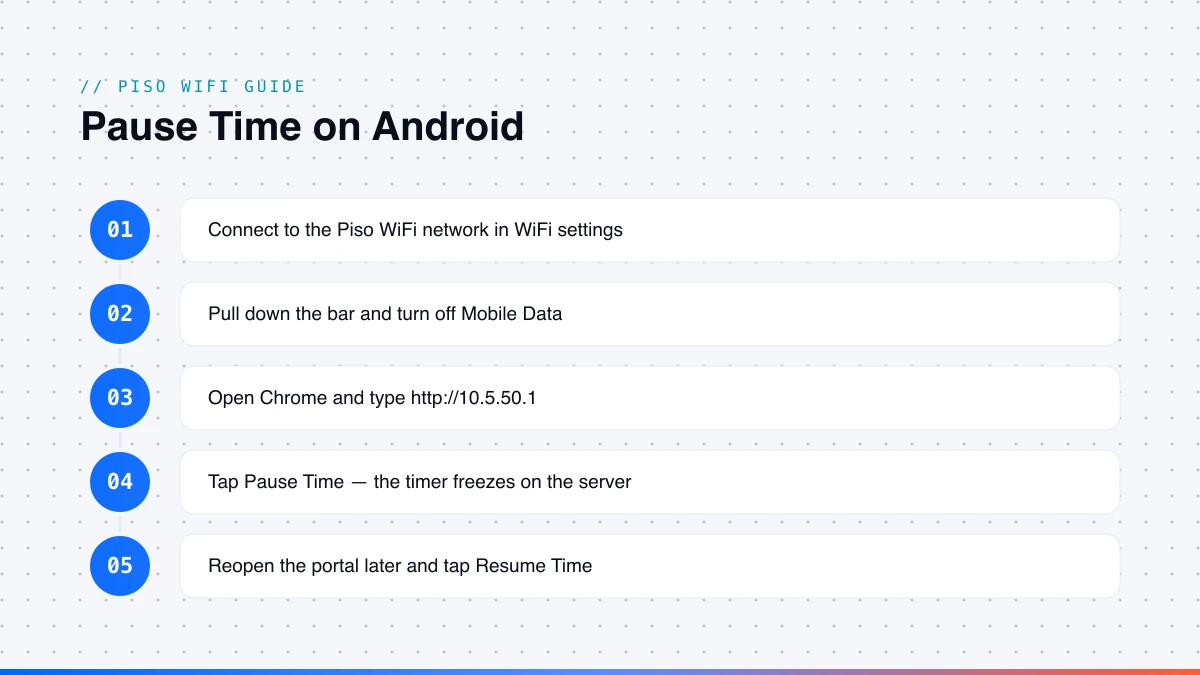
- Go to Settings and open WiFi.
- Connect to the Piso WiFi or router network.
- Pull down the notification bar and turn off Mobile Data completely.
- Open Chrome or any browser.
- Tap the address bar and type
http://10.5.50.1— do not search it. - The user portal loads.
- Tap Pause Time.
- Your screen can lock and the session stays paused — the timer is frozen on the server side, not on your phone.
When you are ready to resume, unlock your phone, reopen the browser, go back to the same address, and tap Resume Time.
Setting Pause Time Rules as a Network Admin
If you run the network, control the pause feature from the admin side. Go to http://10.5.50.1/admin, enter your credentials, open Timer Rates or Session Settings, find the pause duration setting, set the maximum time a session can stay paused, and configure whether paused sessions expire after a period. Click Save — no reboot needed for this change. For recommended limits by location type, see the pause time limits on the homepage guide.
How to Check 10.5.50.1 Status
The status page shows what your network is doing right now — the fastest way to diagnose drops and confirm your router is reaching the internet. Log in to http://10.5.50.1, look for the Status tab, and the overview loads automatically. You will see the connection type and status, the ISP-assigned IP, router uptime, number of connected devices, signal and channel info, and DNS details.
If the status page shows the router is online but a device cannot browse, the issue is with that device. If it shows no internet connection, the problem is between your router and the ISP.
How to Log Out of 10.5.50.1 Safely
Logging out is a step most people skip, and it creates real security risks on shared devices. An open admin session means anyone can change your password, block devices, or change settings.
Look for a Logout or Sign Out button in the top-right corner, click it, and close the browser tab. On a shared or public device, also clear the browser history and saved passwords. On mobile, tap Logout, close the tab, and clear saved form data and passwords for that site.
If your browser offers to save the 10.5.50.1 admin password, decline on any shared device — and use Incognito/Private browsing when logging in from a non-personal device.
How to Reset 10.5.50.1 Router to Factory Settings
If you forgot the admin credentials and cannot log in, a factory reset is your only option.
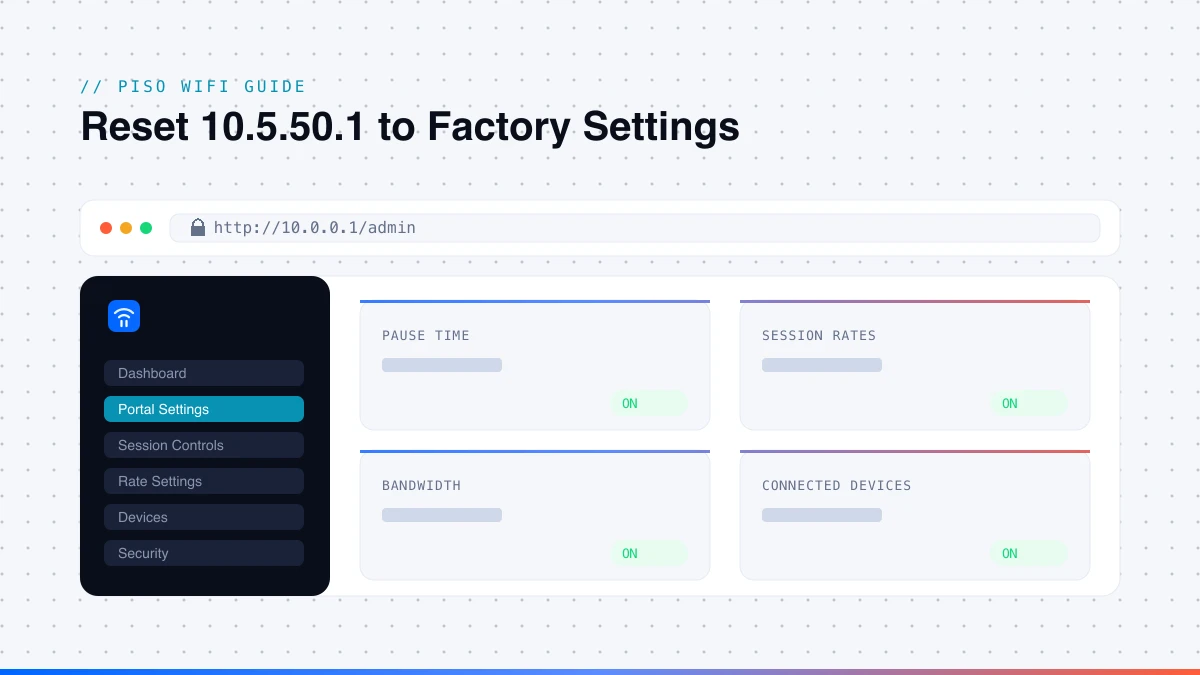
A reset erases your custom WiFi name and password, the admin credentials, all device rules and blocks, pause time limits and session rates, and any port forwarding or DNS settings.
- Locate the reset button, usually at the bottom or rear of the router.
- Take a paper clip, SIM ejector, or pin.
- With the power still on, press and hold the reset button.
- Keep holding for 10–30 seconds, until the light blinks continuously.
- Wait about a minute for the router to reboot.
- Reconnect your devices — the WiFi name may revert to factory settings.
- Log in with the default credentials from the table above.
Once the reset is complete, change the admin and WiFi passwords immediately before anything else.
How to Change Your WiFi Name and Password via 10.5.50.1
The admin password and WiFi password are separate. One controls who can manage the router; the other controls who can connect. Both matter.
- WiFi name (SSID): log in to
/admin, go to Wireless Settings, edit the SSID field, keep it neutral (no personal info), and save. - Admin password: open System Settings, Administration, or Security, find the Admin/Login Password field, enter a new password, and save.
- WiFi password: in Wireless Settings, update the Password/Security Key field, set encryption to WPA3 (or WPA2 at minimum — never WEP), and save.
Is 10.5 50.1 the Same as 10.5.50.1?
If you searched for 10.5 50.1 with a space, the browser ran a Google search instead of loading the panel. A space breaks the IP format.
| What You Typed | What the Browser Does | What You Should Type |
|---|---|---|
10.5 50.1 | Runs a Google search | 10.5.50.1 |
10.5.50.1 | Tries to load the page | 10.5.50.1 |
http://10.5.50.1 | Loads directly, faster | Recommended format |
10.50 5.1 | Invalid, runs as search | 10.5.50.1 |
10.5.5.5.1 | Invalid, five sections | 10.5.50.1 |
Always type it in the address bar, and always include http:// at the start.
Common 10.5.50.1 Login Problems and Fixes
Won't open in Chrome: Chrome on Android sometimes treats IP addresses as search queries. Always type the full address with http:// at the start — http://10.5.50.1. The prefix tells Chrome this is a web address, not a search.
IP address conflict errors: two devices share the same IP. Restart your router to force new IP assignments, reboot the device that cannot connect, and for recurring cases use DHCP rather than a fixed IP. Verify your router's DHCP pool is large enough for all devices.
How to Find the 10.5.50.1 IP on Your Device
| Device | Steps to Find the Default Gateway |
|---|---|
| Windows | Win + R → cmd → ipconfig → look for Default Gateway |
| Mac | System Settings → Network → connection → Advanced → TCP/IP |
| Android | Settings → WiFi → tap network → Advanced → Gateway |
| iPhone / iPad | Settings → WiFi → tap the (i) → Router field |
If the gateway shown is not 10.5.50.1, your router uses a different default IP. For LPB Piso WiFi systems the alternate gateway is 10.0.0.1; for most PLDT modems it is 192.168.1.1.
Related IP Addresses for Router Admin Access
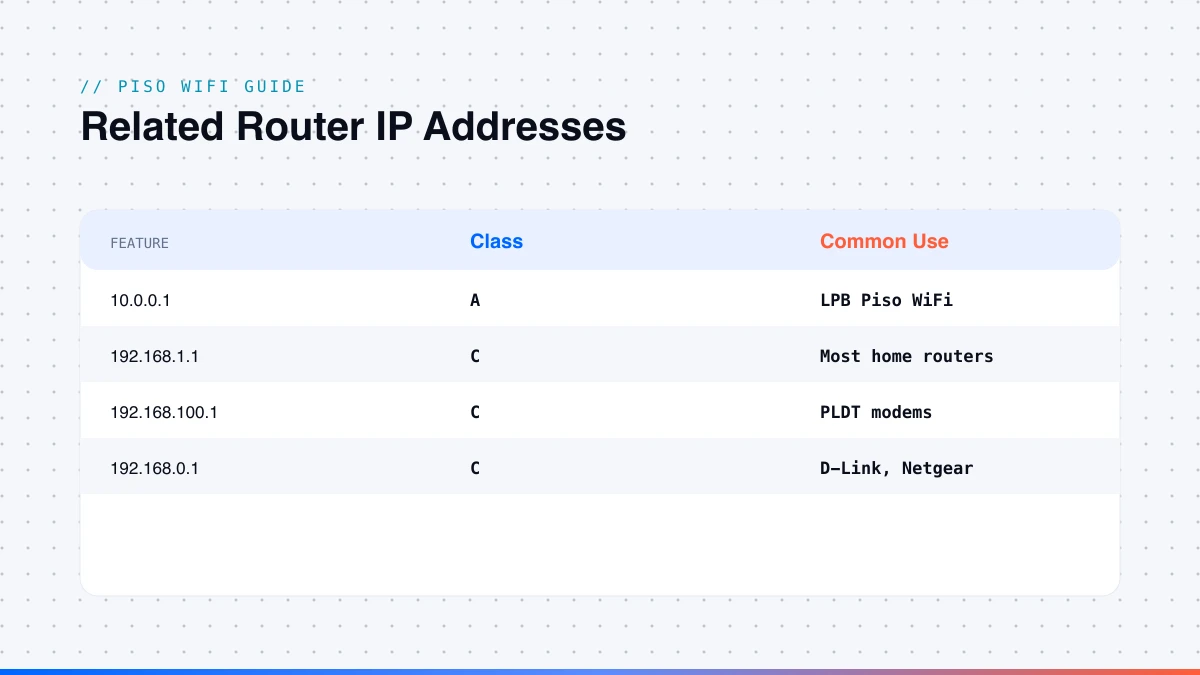
| IP Address | Common Use |
|---|---|
10.0.0.1 | LPB Piso WiFi user portal and admin panel |
192.168.1.1 | The most common home router gateway |
192.168.100.1 | PLDT and some ISP-branded modems |
192.168.0.1 | D-Link and older Netgear routers |
192.168.1.254 | Some Huawei and fibre-type modems |
Each follows the same general login process. If your gateway turns out to be a different uncommon address, our 20.0.0.1 admin login guide covers that one too.
Frequently Asked Questions
What is 10.5.50.1 used for?
It is a private IP address that works as the default gateway for certain routers and Piso WiFi systems.
Why is 10.5.50.1 not opening?
The three most common reasons: mobile data is still on, the IP was typed into a search bar instead of the address bar, or the device is not connected to the right WiFi network.
What does 10.5.50.1 pause time actually do?
It freezes your paid internet session timer without disconnecting you from the network. You can leave and come back later, and your paid minutes are still waiting for you.
What is the default password for 10.5.50.1?
It depends on the brand. Most routers use admin / admin. LPB Piso WiFi systems use admin / 123456789.
Can I access 10.5.50.1 from my phone?
Yes. Turn off mobile data, connect to the router's WiFi, open any browser, and type http://10.5.50.1 in the address bar. It works the same as on a laptop.
How do I know if someone is using my WiFi without permission?
Log in to the admin panel and check the connected devices list. Compare the MAC addresses against the devices you own — any unfamiliar device is unauthorised. Block it from the same page.
About the author
Piso WiFi Guide Team
The Piso WiFi Guide Team documents how the 10.0.0.1 portal and admin panel behave across LPB, AdoPiSoft, JuanFi and other firmware, for both users and operators.
Related guides
How to Request a Piso WiFi Vendo Machine Permit (2026)
Register and request a Piso WiFi vendo machine in 2026: NTC VAS permit steps, business permits, machine options, and coin slot calibration.
Read guide →
20.0.0.1 Admin Login: Easy Access & Setup Guide
Open 20.0.0.1 the right way. Log in, change your WiFi name and password, set up a captive portal, and fix login errors — simple steps for 2026.
Read guide →
10.0.0.1 Admin Login: Settings, Passwords & Pause Time
Log in to 10.0.0.1 in minutes. Change your WiFi name and password, turn on Piso WiFi pause time, and fix common login errors — easy step-by-step guide.
Read guide →